Android Mobile app
Requirements
Before you start, you should have the recommended Tools and Libraries installed. You will also need to install:
- Visual Studio 2019 (required for a dependency not included yet in VS 2022; development can be done in VS 2022)
- dotnet Core 3.1 (latest)
- Note: Even if you have an M1 Mac with ARM 64 architecture, you can install all x64 SDKs to run android
- Xamarin (Android)
- Android SDK 29
- You can use the SDK manager in Xamarin, Visual Studio, or Android Studio to install this
To make sure you have the Android SDK and Emulator installed:
Open Visual Studio
Click Tools > SDK Manager (under the Android subheading)
Click the Tools tab
Make sure the following items are installed:
- Android SDK tools (at least one version of the command-line tools)
- Android SDK Platform-Tools
- Android SDK Build Tools (at least one version)
- Android Emulator
Click Apply Changes if you've marked anything for installation
If you've missed anything, Visual Studio should prompt you anyway.
Android Development Setup
To set up a new virtual Android device for debugging:
- Click Tools > Device Manager (under the Android subheading)
- Click New Device
- Set up the device you want to emulate - you can just choose the Base Device and leave the default settings if you're unsure
- Visual Studio will then download the image for that device. The download progress is shown in the progress in the Android Device Manager dialog.
- Once this has completed, the emulated Android device will be available as a build target under Android > Debug > (name of device)
M1 Macs
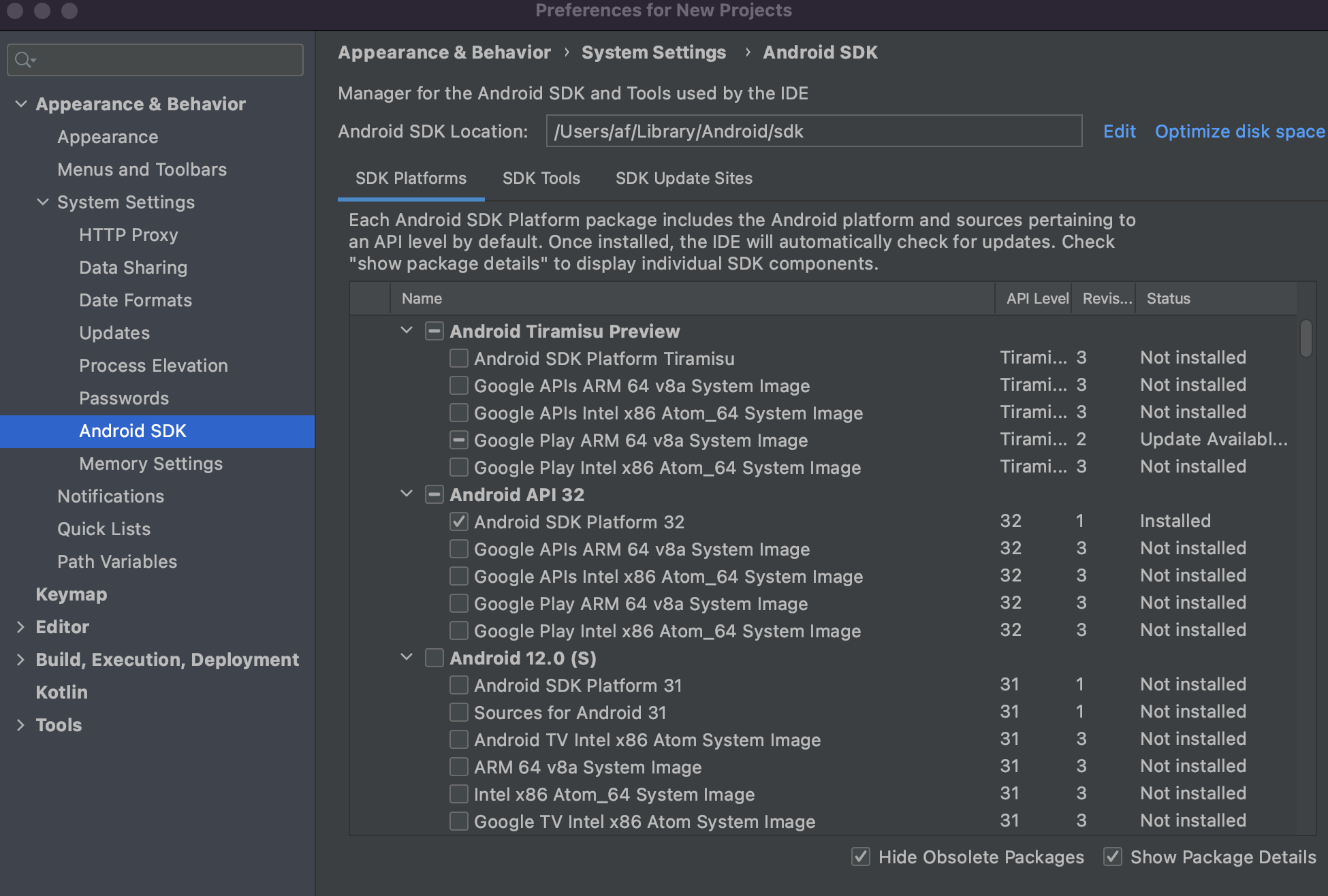
- Install and open Android Studio
- In the top navbar, click on Android Studio > Preferences > Appearance & Behavior (tab) > System Settings > Android SDK
- In the SDK Platforms tab, ensure the "Show Package Details" checkbox is checked (located in the bottom-right)
- Bellow each Android API you'll see several System Images, pick one of the
ARM 64 v8aand wait for it to download - Go to View > Tool Windows > Device Manager
- Inside Device Manager, create a device using the previously downloaded system image
Testing and Debugging using the Android Emulator
In order to access localhost:<port> resources in the Android Emulator when debugging using Xamarin
studio on your mac natively, you'll need to configure the endpoint addresses using
<http://10.0.2.2:<port>> in order to access localhost, which maps the Android proxy by design.